Try the Most Addicted Game - Real Rocket Racing 3d Game

Showing posts with label MAC. Show all posts

Monday, August 25, 2014

Thunderbolt Firmware Update Headed Mac Users Way

Everyone knows how important it is to keep themselves in touch with every update that gets released, whether it be for their mobile or PC operating system. With the advancement of malware and spyware, it seems impossible to have a device which functions without causing issues unless one is properly updated and on top of the vulnerabilities that hackers and their virus brigade manage to get the best of.

And speaking of updates, Apple has come out with a recent update for Mac systems, which have ever so slowly been losing their status as super safe computer systems. Overall Apple has always managed to keep the security side of things tight (too tight according to some) but lately it’s Mac OS has been coming under fire for not being able to stand the test of hard drive extraction and usage. Though Mac users hardly complain of Mac spy software or other such standard issues, this particular liability has needed to be addressed and the update that will do so is finally here.

The firmware update is for the Thunderbolt controllers in Mac systems. The entire update is designed to deal with the issues popping up with individuals using Target Disk Mode to mount a Mac’s internal hard drive onto another system or external drive. This method is mostly used for trouble shooting the hard drive function or whenever users need to migrate their data to a new Mac system but it can also potentially leak your information if in the wrong hands. Anyone with physical access to your system and a root account can easily go through your emails and whatever else is stored. Of course this is a major threat to both user security and privacy.

This particular update isn’t a heavy one and is simply 1.22MB; it can be either downloaded through Apple’s Support Downloads website or then run manually or you can run the Software Update Service in OS X in the Apple menu. Despite its small size, this particular update comes with firmware updates for a number of systems with this port including the iMac, MacBook, and Mac Mini systems. So far there hasn’t been any word of any specific system requirements which are needed and hence one can assume that it would be applicable to anyone whose device sports a Thunderbolt port.

For users who are attempting to install this update, simply make sure that you are indeed following the onscreen instructions by Apple and there is no chance of disruption of your power supply. Updating firmware is actually a fragile process and if gone even slightly wrong, it can end up corrupting your system and leaving it useless. Of course Apple’s release is a part of advanced technology and this modern firmware updating method seems secure and safe from corruption over the last few years.

What the update does require is the OS X 10.8.3 and as with all updates and installations, you will need to restart your system for installation. Now having read up on this, go get your update ASAP, waiting around to update is never a smart idea.

Katherine Kayden is a writer for Stealthmate and loves to blog about latest trends in the tech world and further review them. She can be contacted @ katkay00@gmail.com. 

Wednesday, October 19, 2011

How to close a stucked program in Mac OS

If you stuck with application in Mac and not able to close the application? then how to do this in Mac Operating System follow the below steps.

  • Click on the Apple logo
  • Click Force Quit


  • Then you a window will open which shows list of runnings applications

  • Select the application which you want to close and click force quit.

Thursday, July 14, 2011

Animate Mac OS X Dashboard in Slow Motion


You can make Dashboard appear in slow motion by pressing the Shift key when you launch or exit the Dashboard.Generally if you press Function Key + F12 the Dashboard launches quickly. When you hold Shift key the dashboard animates in slow motion, which is pretty cool. icon wink How To Animate Mac OS X Dashboard in Slow Motion

To Open Dashboard in slow motion:
Press Shift + Func + F12
To close Dashboard in slow motion:
Press Shift + Func + F12
OR
Press Shift and Click on the Background (Not on any widget)

Mac OS X graphics in cool icon wink How To Animate Mac OS X Dashboard in Slow Motion Isn’t it?

Monday, March 7, 2011

Fix Mac Safari YouTube Black Screen Blank Players


A common issue with Mac computers and the Safari internet browser is that sometimes YouTube videos display incorrectly, just display a black screen, or display a black player.


Luckily, if YouTube videos aren’t working correctly for you, the solution is quite easy. These next two steps should get you on your way to watching videos again in no time.

1. Change Safari Settings

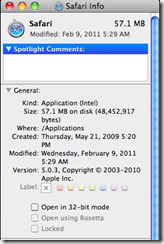
The easiest and most simple way to fix this YouTube error is to adjust some simple settings within Safari. Navigate the path Finder – Applications. Scroll down your applications list until you find the Safari icon. Right-click the Safari icon and choose Get Info from the context menu.
  Click the check box next to Open in 32-bit mode. Close and exit out of the Safari Info window.

Launch Safari and navigate Safari – Reset Safari – Reset to reset Safari. From here, YouTube videos should start working again and the blank player should be gone.


2. Uninstall and Reinstall Flash

If the above solution did not fix the YouTube problems, you should next try uninstalling and reinstalling Flash player. This is very easy to do.

Navigate to this webpage, select Macintosh and I want to uninstall Flash Player. After choosing your operating system, you will be prompted to download the Flash Player uninstall utility. Run the utility and uninstall Flash Player.

After Flash Player has been completely removed, head on over to Adobe and download and install the latest version of Flash Player.

After you have installed the latest version of Flash Player, navigate Finder – Applications – Utilities – Disk Utility. Select your hard drive from the list and Repair Disk Permissions.

Restart your computer and YouTube videos should be working.


Note: The two above steps will fix YouTube issues the majority of the time. If your YouTube is still not working, try using a different browser, such as Firefox. This way, you can check to see if YouTube works with your computer, but with a different browser. If it works with Firefox, go through your Safari Preferences and check for any incorrect settings.

For more Mac tips, check out Switching To Mac, our sister site that is all about Macs, iPhones, iPads, and everything else Apple related.